OpenBooks for Chrome
One approved report. One controlled handoff.
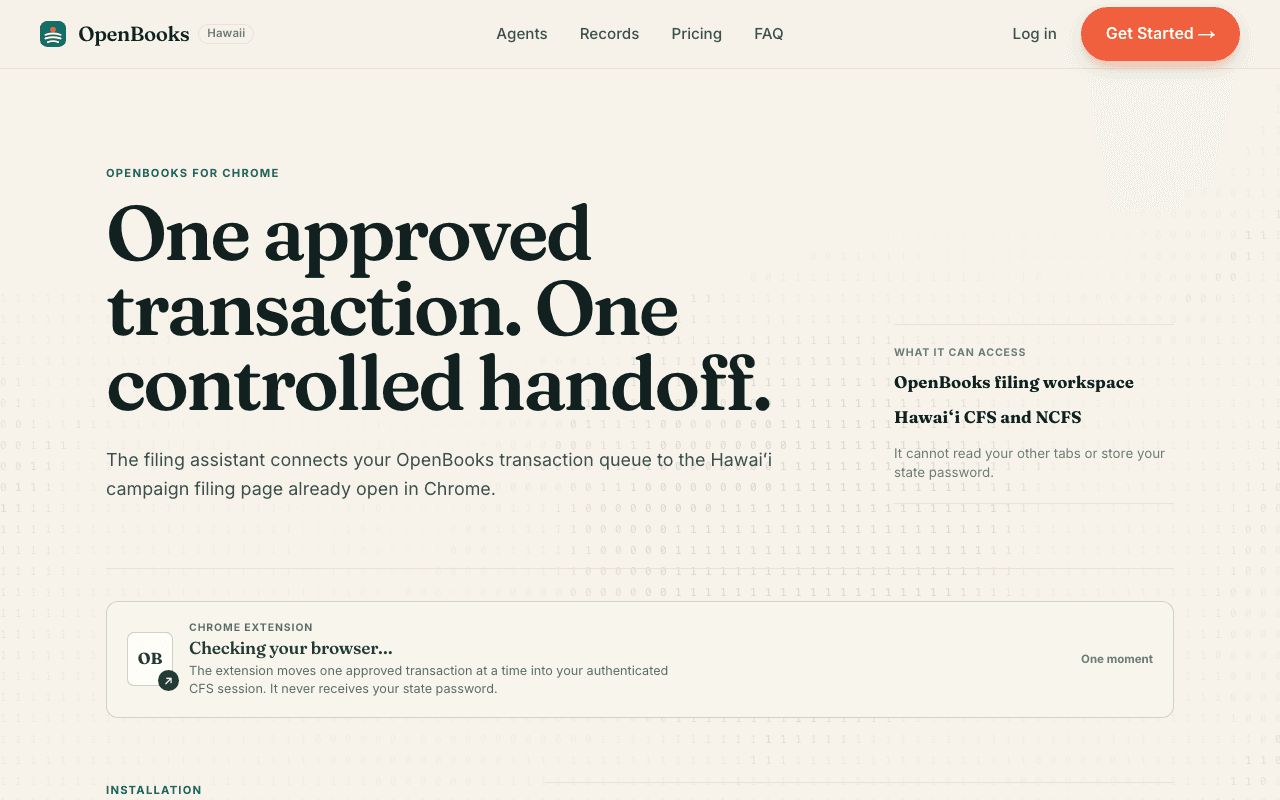
The filing assistant keeps your exact approved OpenBooks report beside the selected Hawaiʻi campaign filing page in Chrome.
Browser setup
Checking CSC access…
A one-time Chrome setup keeps this exact approved record beside your authenticated CSC session. OpenBooks never receives your state password.
- 1Browser ready
- 2Campaign connected
- 3Continue in CSC
Three-minute setup
You always know which campaign Chrome is connected to.
The green status card is the source of truth. It confirms the extension version, names the paired workspace, and keeps filing unavailable until pairing succeeds.
- 1 Installed in this browser
- 2 Connected to the intended campaign
- 3 Ready for an approved report
Installation
From Chrome Web Store to approved report.
- 01
Add the extension to Chrome
Review Chrome’s permission screen, then choose Add extension. OpenBooks is limited to its filing workspace and Hawaiʻi CFS and NCFS.
- 02
Open your campaign workspace
Return to OpenBooks while signed in and open Hawaii filing preparation for the company you want to manage.
- 03
Connect this workspace
Choose Connect to this workspace. The browser becomes paired only to that campaign; pairing another campaign revokes the previous token.
- 04
Approve the exact reporting period
OpenBooks locks the source-backed report before it can cross the browser bridge.
- 05
Review the state screen
Open the selected CFS or NCFS report with assistant. CFS field placement is limited to the verified Schedule B screen; the candidate or authorized filer controls every save, certification, and submission.
Before Web Store approval
Pilot installations are supervised.
Chrome does not permit a website to silently install an extension. During the controlled pilot, OpenBooks provides the reviewed package and walks the candidate or authorized filer through Chrome’s developer-mode installation over a live support session.
This is temporary. Customer self-installation begins when the Chrome Web Store listing is approved.
Schedule a pilot installation →